
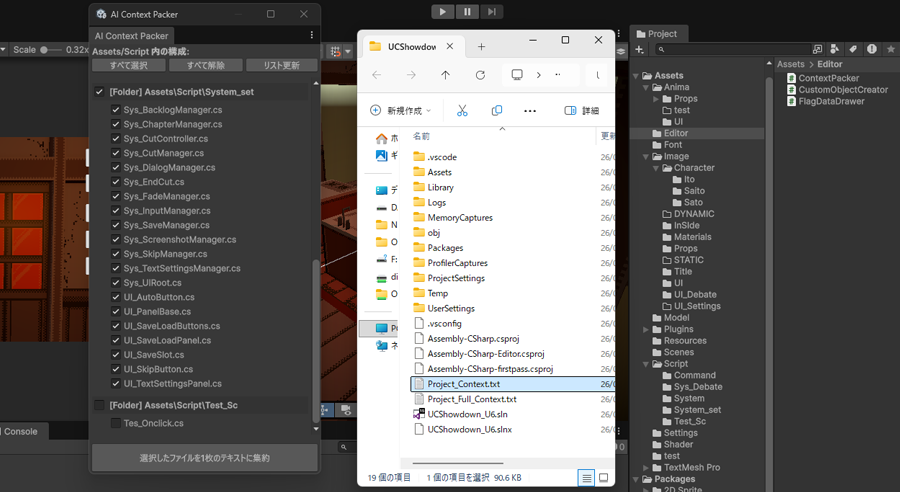
ゲーム開発中は「スクリプト」が増えていきます。
バイブコーディング(Aiツールでコードを作成していくなど)の際に、
今まで作ったスクリプトを、参考のために添付して確認してもらうことは毎度のことになります。
「Visual Studio Code」を使っている場合は、
有料で使用しているAiツールの「APIキー」を使用すればローカルでフォルダを指定して、読み込んでもらえます。
無料でもGeminiキーはあるようです。
無料で、APIよく分からない層は、ブラウザ版Aiにファイル添付方式を使うしかないわけですが、
複数のスクリプトを、しかも毎回更新しているかもしれないスクリプトを添付するのは手間です。
それを解消するため、
Unity側で、使っているスクリプトを一括でまとめて1つのテキストファイルにしてもらうシステムを追加しましょう。
選んだスクリプトの一括テキストファイル1つを添付するだけで済むようになります。
注意点としては、あまり大量のスクリプト(テキスト量)をまとめてしまうと、
Aiのセッション限界に近づいてしまうおそれがあるということです。
ContextPacker.csを作成
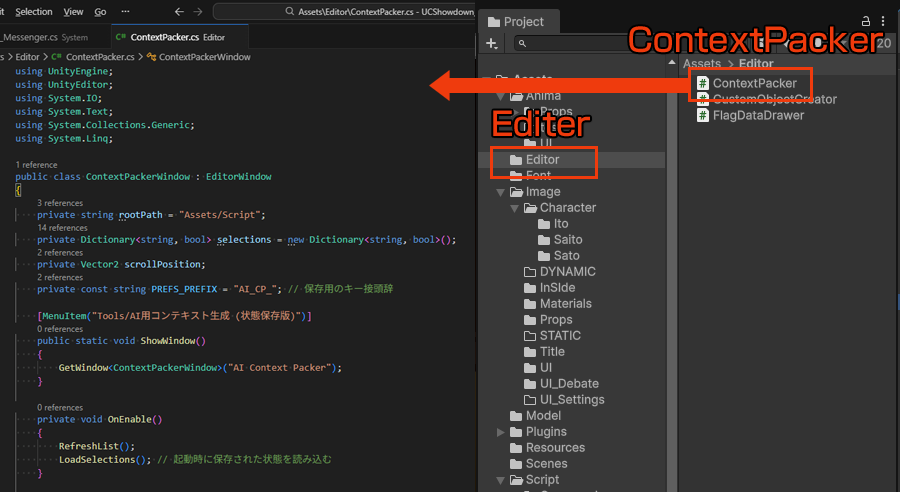
Unity専用フォルダである「Editer」フォルダに、新規スクリプト「ContextPacker.cs」を作成します。
using UnityEngine;
using UnityEditor;
using System.IO;
using System.Text;
using System.Collections.Generic;
using System.Linq;

public class ContextPackerWindow : EditorWindow
{
    private string rootPath = "Assets/Script";
    private Dictionary<string, bool> selections = new Dictionary<string, bool>();
    private Vector2 scrollPosition;
    private const string PREFS_PREFIX = "AI_CP_"; // 保存用のキー接頭辞

    [MenuItem("Tools/AI用コンテキスト生成 (状態保存版)")]
    public static void ShowWindow()
    {
        GetWindow<ContextPackerWindow>("AI Context Packer");
    }

    private void OnEnable()
    {
        RefreshList();
        LoadSelections(); // 起動時に保存された状態を読み込む
    }

    private void RefreshList()
    {
        // 既存の選択状態を一時保存
        var oldSelections = new Dictionary<string, bool>(selections);
        selections.Clear();

        if (!Directory.Exists(rootPath)) return;

        string[] allFiles = Directory.GetFiles(rootPath, "*.cs", SearchOption.AllDirectories);
        foreach (var file in allFiles)
        {
            string relativePath = file.Replace("\\", "/").Replace(Application.dataPath, "Assets");
            // 新規ファイルはデフォルトON、既存ファイルは元の状態を維持
            selections[relativePath] = oldSelections.ContainsKey(relativePath) ? oldSelections[relativePath] : true;
        }
    }

    private void OnGUI()
    {
        GUILayout.Label($"{rootPath} 内の構成:", EditorStyles.boldLabel);

        EditorGUILayout.BeginHorizontal();
        if (GUILayout.Button("すべて選択")) SetAll(true);
        if (GUILayout.Button("すべて解除")) SetAll(false);
        if (GUILayout.Button("リスト更新")) RefreshList();
        EditorGUILayout.EndHorizontal();

        GUILayout.Space(5);

        scrollPosition = EditorGUILayout.BeginScrollView(scrollPosition);

        var groupedFiles = selections.Keys
            .GroupBy(path => Path.GetDirectoryName(path))
            .OrderBy(g => g.Key);

        foreach (var group in groupedFiles)
        {
            string folderPath = group.Key;

            EditorGUILayout.BeginHorizontal(GUI.skin.box);

            bool allInFolder = group.All(path => selections[path]);
            bool anyInFolder = group.Any(path => selections[path]);

            EditorGUI.showMixedValue = anyInFolder && !allInFolder;
            bool newFolderVal = EditorGUILayout.ToggleLeft($" [Folder] {folderPath}", allInFolder, EditorStyles.boldLabel);
            EditorGUI.showMixedValue = false;

            if (newFolderVal != allInFolder)
            {
                foreach (var path in group) {
                    selections[path] = newFolderVal;
                    SaveSelection(path, newFolderVal); // フォルダ操作時も即保存
                }
            }
            EditorGUILayout.EndHorizontal();

            foreach (var path in group)
            {
                EditorGUILayout.BeginHorizontal();
                GUILayout.Space(30);

                bool oldVal = selections[path];
                bool newVal = EditorGUILayout.ToggleLeft(Path.GetFileName(path), oldVal);

                if (newVal != oldVal)
                {
                    selections[path] = newVal;
                    SaveSelection(path, newVal); // 個別操作時に即保存
                }
                EditorGUILayout.EndHorizontal();
            }
            GUILayout.Space(5);
        }

        EditorGUILayout.EndScrollView();

        GUILayout.Space(10);
        if (GUILayout.Button("選択したファイルを1枚のテキストに集約", GUILayout.Height(40)))
        {
            PackSelectedFiles();
        }
    }

    private void SetAll(bool value)
    {
        var keys = new List<string>(selections.Keys);
        foreach (var key in keys) {
            selections[key] = value;
            SaveSelection(key, value);
        }
    }

    // 保存処理
    private void SaveSelection(string path, bool value)
    {
        EditorPrefs.SetBool(PREFS_PREFIX + path, value);
    }

    // 読み込み処理
    private void LoadSelections()
    {
        var keys = new List<string>(selections.Keys);
        foreach (var path in keys)
        {
            // 保存されたデータがあれば適用。なければデフォルトON
            selections[path] = EditorPrefs.GetBool(PREFS_PREFIX + path, true);
        }
    }

    private void PackSelectedFiles()
    {
        StringBuilder sb = new StringBuilder();
        sb.AppendLine("# Unity Project Context (Selective)");
        sb.AppendLine($"# Generated: {System.DateTime.Now}");
        sb.AppendLine();

        int fileCount = 0;
        foreach (var item in selections.OrderBy(kv => kv.Key))
        {
            if (!item.Value) continue;

            string fullPath = Path.Combine(Directory.GetCurrentDirectory(), item.Key);
            if (File.Exists(fullPath))
            {
                sb.AppendLine($"--- FILE: {item.Key} ---");
                sb.AppendLine(File.ReadAllText(fullPath));
                sb.AppendLine();
                fileCount++;
            }
        }

        if (fileCount == 0)
        {
            EditorUtility.DisplayDialog("通知", "ファイルが選択されていません。", "OK");
            return;
        }

        string outputPath = Path.Combine(Directory.GetCurrentDirectory(), "Project_Context.txt");
        File.WriteAllText(outputPath, sb.ToString(), Encoding.UTF8);

        EditorUtility.RevealInFinder(outputPath);
        Debug.Log($"<color=lime>成功: {fileCount} 個のファイルを抽出しました。</color>");
    }
}
private string rootPath = “Assets/Script“;の部分がフォルダのパス指定になるので、
ここを自分のプロジェクトフォルダのAssets内の任意のフォルダに変更してください。
使い方
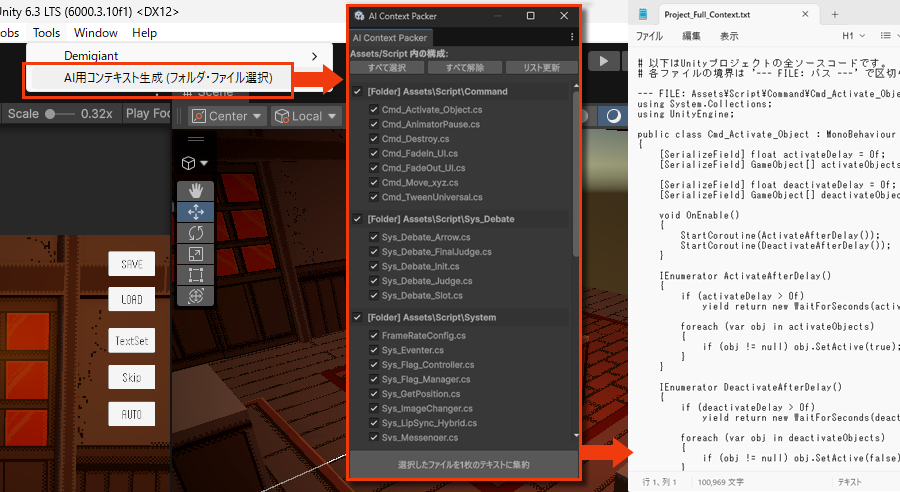
エディターメニュー「Tools」に「AI用コンテクスト生成(フォルダ・ファイル選択)」が追加されます。
任意のフォルダやファイルをチェックし、下にあるボタン「選択したファイルを1枚のテキストに集約」を押せば完了です。
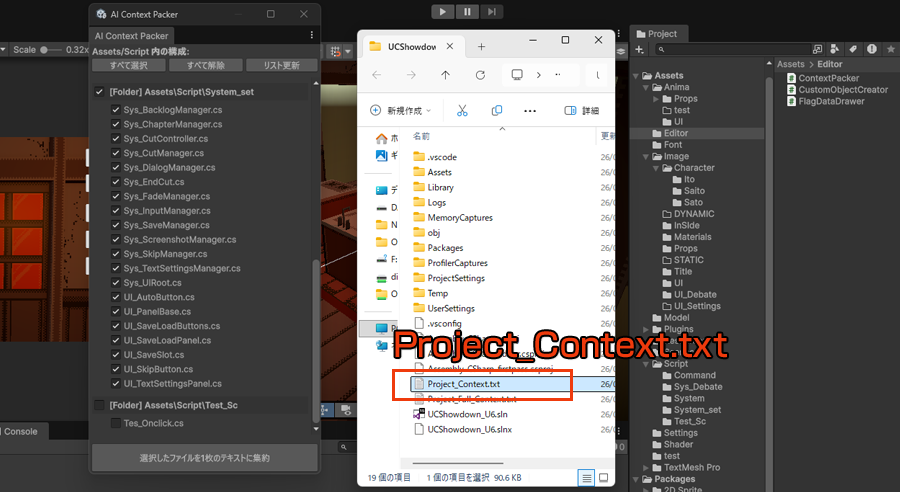
プロジェクトフォルダ内に「Project_Context.txt」というテキストファイルが生成されます。
(フォルダは自動で開きます)
コメント